Updating


iPhone Screenshots



iPad Screenshots



Description
Manual Focus | Manual Shutter & ISO | Manual White Balance | High Speed Burst Shots | Long Exposure (Slow Shutter) | RAW | 4K
Here is a brief introduction to what XN Pro Manual Camera can do for you.
Photo:
One picture is taken everytime the camera button is pressed. You can choose how to save your picture: a JPEG file, or JPEG + RAW. If you choose the latter, two files with be saved to your camera roll. Please note that RAW photo may not be displayed properly in the iPhone. It is recommended that you export it to a Mac or PC to edit it.
Burst:
Press and hold the camera button, and 10/5/3 (upon your choice) pictures will be taken every second, until you let go of the button. It is recommended, however, that you don't keep bursting photos for more than a few seconds, since processing too many pictures could be a burden for your iPhone.
Video:
Tap the video button to start recording, and tap it again to stop. Choose from 4 video qualities: High, Medium ,Low and 4K. For recent iPhones, High means 1080P. Medium and Low are resolutions suitable for viewing over WiFi/Cellular.
While you are recording, you can still take pictures.
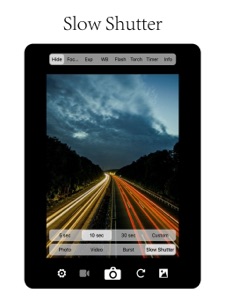
Slow Shutter:
With predefined durations, tap the camera button to start exposure. Exposure will automatically stop when time runs up.
With custom duration, tap the camera button to start exposure and tap again to stop.
During exposure, keep the iPhone steady to avoid blurring the image.
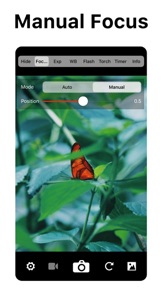
Focus:
Auto: Continuous auto focus.
Manual: Adjust focus position yourself. When enabled, the "tap screen to focus and set exposure" functionality is disabled.
Exposure:
Auto: Continuous auto exposure.
Locked: The system stops the continuous auto exposure for once.
Manual: The system is no longer responsible for setting exposure. When enabled, the "tap screen to focus and set exposure" functionality is disabled.
Offset: indicates the difference between current exposure and what the system believes to be the best exposure.
Duration: aka shutter speed.
ISO: aka... iso.
Bias: Tell the system to make the picture brighter/darker by raising/lowering this value.
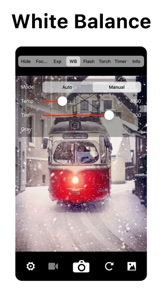
White Balance:
Auto: Continuous auto white balance.
Manual: Set white balance yourself.
Temp & Tint: Adjust the color as you like.
Gray: Put something white or gray in front of the camera and tap this button. The system will set the white balance accordingly.
Torch:
On/Off: Use the flash as a source of lighting.
Flash:
Auto: The system decides whether or not to use the flash when taking a picture.
On: Force the flash to burst everytime a picture is taken.
Off: The flash will not burst whatsoever.
One More Thing:
Tap with two fingers to reveal lines that help with composition (for single photo, burst photo and slow shutter modes).
Suggestions, questions, problems? Please write to zephyrstudio@outlook.com.
What's New in Version 4.1
Minor bug fixes
Information
Developer
Categories
Version
4.1
Size
3.5 MB
Game Center
No
VPP Device Licensing
Yes
Rating
Rated: 4+
Compatibility
iOS 13.0 or later
Devices
iPhone 5s, iPhone 6, iPhone 6 Plus, iPhone 6s, iPhone 6s Plus, iPhone SE, iPhone 7, iPhone 7 Plus, iPhone 8, iPhone 8 Plus, iPhone X, iPhone XR, iPhone XS, iPhone XS Max, iPhone 11, iPhone 11 Pro, iPhone 11 Pro Max, iPhone SE (2nd generation), iPhone 12, iPhone 12 Pro, iPhone 12 Pro Max, iPhone 12 mini, iPhone 13, iPhone 13 Pro, iPhone 13 Pro Max, iPhone 13 mini, iPhone SE (3rd generation), iPhone 14, iPhone 14 Plus, iPhone 14 Pro, iPhone 14 Pro Max, iPad (5th Generation) Wi-Fi, iPad (5th Generation) Wi-Fi + Cellular, iPad (6th generation) Wi-Fi, iPad (6th generation) Wi-Fi + Cellular, iPad Pro, iPad Pro (Cellular), iPad Pro (9.7-inch), iPad Pro (9.7-inch) (Cellular), iPad Pro 12.9-inch (2nd generation), iPad Pro 12.9-inch (2nd generation) Wi-Fi + Cellular, iPad Pro (10.5-inch), iPad Pro (10.5-inch) Wi-Fi + Cellular, iPad Pro (11-inch), iPad Pro (11-inch) Wi-Fi + Cellular, iPad Pro 12.9-inch (3rd generation), iPad Pro 12.9-inch (3rd generation) Wi-Fi + Cellular, iPad Air, iPad Air (Cellular), iPad Air 2, iPad Air 2 (Cellular), iPad Air (3rd generation), iPad Air (3rd generation) Wi-Fi + Cellular, iPad mini Retina, iPad mini Retina (Cellular), iPad mini 3, iPad mini 3 (Cellular), iPad mini 4, iPad mini 4 (Cellular), iPad mini (5th Generation), iPad mini (5th Generation) Wi-Fi + Cellular, iPad (7th generation) Wi-Fi + Cellular, iPad Pro 11-inch (2nd generation), iPad Pro 11-inch (2nd generation) Wi-Fi + Cellular, iPad Pro 12.9-inch (4th generation), iPad Pro 12.9-inch (4th generation) Wi-Fi + Cellular, iPad Air (4th Generation) (Wi-Fi), iPad Air (4th Generation) (Wi-Fi + Cellular), iPad (8th generation) Wi-Fi, iPad (8th generation) Wi-Fi + Cellular, iPad Pro 11-inch (3rd generation), iPad Pro 11-inch (3rd generation) Wi-Fi + Cellular, iPad Pro 12.9-inch (5th Generation), iPad Pro 12.9-inch (5th Generation) Wi-Fi + Cellular, iPad (9th Generation), iPad (9th Generation) Wi-Fi + Cellular, iPad mini (6th Generation), iPad mini (6th Generation) Wi-Fi + Cellular, iPad Air (5th generation), iPad Air (5th generation) Wi-Fi + Cellular, iPad Pro 11-inch (4th generation), iPad Pro 11-inch (4th generation) Wi-Fi + Cellular, iPad Pro 12.9-inch (6th generation), iPad Pro 12.9-inch (6th generation) Wi-Fi + Cellular, iPad (10th generation), iPad (10th generation) Wi-Fi + Cellular, iPod touch (6th Generation), iPod touch (7th generation)
Languages
English, Chinese
App Store: Customer Ratings
Ratings & Reviews
5.0 of 5 (2 Ratings)
App Store: Customer Reviews
No Entry